
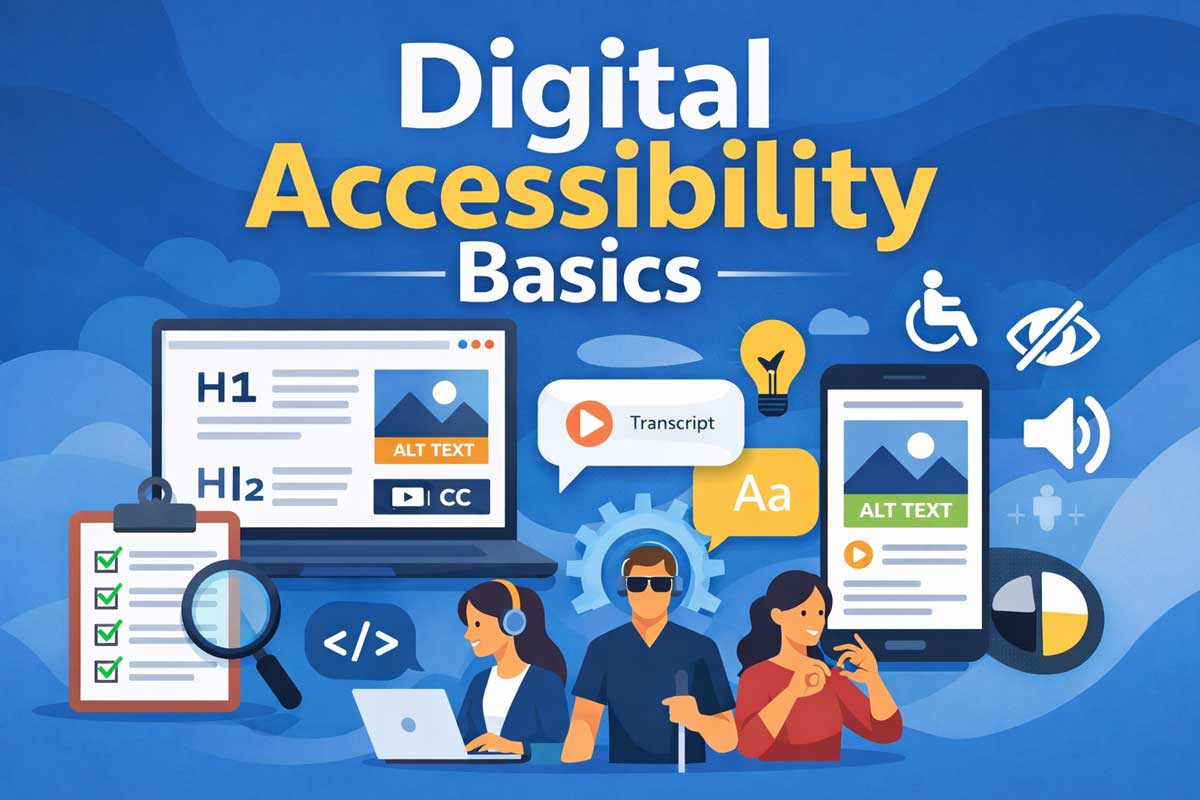
Digital accessibility isn’t just a technical requirement, it’s a fundamental part of communicating effectively with everyone you serve. From your website to your social media content, every interaction should be usable by people with a wide range of abilities, including those who rely on assistive technologies. Grounded in standards tied to the Americans with Disabilities Act, accessibility helps ensure that your content, services, and information are available to all.
Visit the Web Accessibility Initiative website for details.
This checklist breaks down the essentials into clear, practical steps you can start applying right away.
1. Text Alternatives (Alt Text)
What to check
- Every meaningful image has a clear description
- Decorative images are marked as decorative (or skipped)
Website
- Add alt text to all images in your CMS
- Describe the purpose, not just the object
(“Students registering at the front desk” vs “people standing”)
Social Media
- Use built-in alt text fields on platforms like Instagram, Facebook, and LinkedIn
- If alt text isn’t available, include a short description in the caption
2. Clear Headings & Structure
What to check
- Content is organized with headings in the right order (H1 → H2 → H3)
- No skipping levels
Website
- Use proper heading tags, not just bold text
- Keep sections clearly labeled
Social Media
- Use line breaks, spacing, and short sections
- Avoid long, dense paragraphs
3. Color Contrast & Readability
What to check
- Text is easy to read against its background
- No reliance on color alone to convey meaning
Website
- Use high-contrast color combinations
- Avoid light gray text on white backgrounds
- Ensure links are clearly distinguishable
Social Media
- Avoid text over busy images
- Use high-contrast templates for graphics
- Don’t say “click the green button” without another cue
4. Keyboard Accessibility
What to check
- Everything can be accessed without a mouse
Website
- Test using only the keyboard (Tab, Enter)
- Ensure menus, buttons, and forms are reachable
Social Media
- Mostly handled by the platform
- Focus on linking to accessible web pages
5. Link Clarity
What to check
- Links clearly explain where they go
Website
- Avoid “Click here” or “Read more”
- Use descriptive links like “Download the school calendar”
Social Media
- Be explicit: “View full event details here: [link]”
- Let users know what to expect (PDF, form, etc.)
6. Captions & Transcripts
What to check
- Audio content is accessible to people who can’t hear it
Website
- Add captions to videos
- Provide transcripts for audio
Social Media
- Always use captions on videos (auto + edited for accuracy)
- Avoid relying on sound alone for key info
7. Accessible Documents (PDFs, Word Files)
What to check
- Documents are readable by screen readers
Website
- Use properly formatted documents (headings, tags)
- Avoid scanned PDFs (they’re often inaccessible)
- Provide HTML versions when possible
Social Media
- Avoid linking to inaccessible PDFs
- Summarize key info in the post itself
8. Simple Language & Clarity
What to check
- Content is easy to understand
Website
- Use plain language
- Break up complex info into sections
Social Media
- Keep sentences short and direct
- Avoid jargon and acronyms without explanation
9. Consistent Navigation & Layout
What to check
- Users can predict where things are
Website
- Keep menus consistent across pages
- Use familiar layouts
Social Media
- Maintain consistent branding and formatting
- Use predictable post structures (especially for recurring content)
10. Avoid Accessibility Barriers
What to check
- No content that’s difficult or impossible to use
Website
- Avoid auto-playing audio/video
- Don’t use flashing content
- Ensure forms have labels and instructions
Social Media
- Avoid flashing or rapidly moving graphics
- Don’t overload posts with emojis or hashtags mid-sentence
11. Hashtags & Emojis (Social-Specific)
What to check
- Content remains readable with assistive tech
Website
- (Usually not relevant)
Social Media
- Use CamelCase hashtags (#SchoolOpenHouse not #schoolopenhouse)
- Limit emoji use
- Place emojis at the end of sentences, not in the middle
12. Test Before Publishing
What to check
- Content works in real-world conditions
Website
- Run accessibility checks (WAVE, Lighthouse, etc.)
- Try navigating without a mouse
- Use a screen reader preview if possible
Social Media
- Preview posts before publishing
- Turn on captions and review them
- Ask: “Would this make sense if I couldn’t see or hear it?”
Quick Reality Check
If you only do a few things, prioritize:
- Alt text
- Captions
- Clear links
- Readable contrast
- Accessible PDFs
That alone will eliminate a large percentage of common issues.
All Your Website Needs in One Place
Design, development, tune-ups, management, and digital marketing consultations all aimed at growing your business online.
Get Started Today